 A DSE Assessment Guide for Ergonomic Decision-Making
Laptops are now widely used as the primary device for office-based, hybrid and home working. Their portability makes them highly practical for flexible working, hot-desking and remote work.
However, from a Display Screen Equipment (DSE) assessment perspective, the key question is not whether laptops are convenient, but whether they are suitable for the duration, frequency and nature of use.
In many workplaces, laptop-only setups are still being used for sustained daily screen-based work where a more ergonomic workstation would be appropriate.
Why laptop-only workstations can present ergonomic limitations
A laptop combines the screen, keyboard and mouse into a single fixed unit. While this supports mobility, it creates an inherent limitation for sustained use, as screen position and input position are mechanically linked. This means the user cannot independently optimise both simultaneously without compromise.
This typically results in trade-offs such as:
- Low screen height leading to increased neck flexion
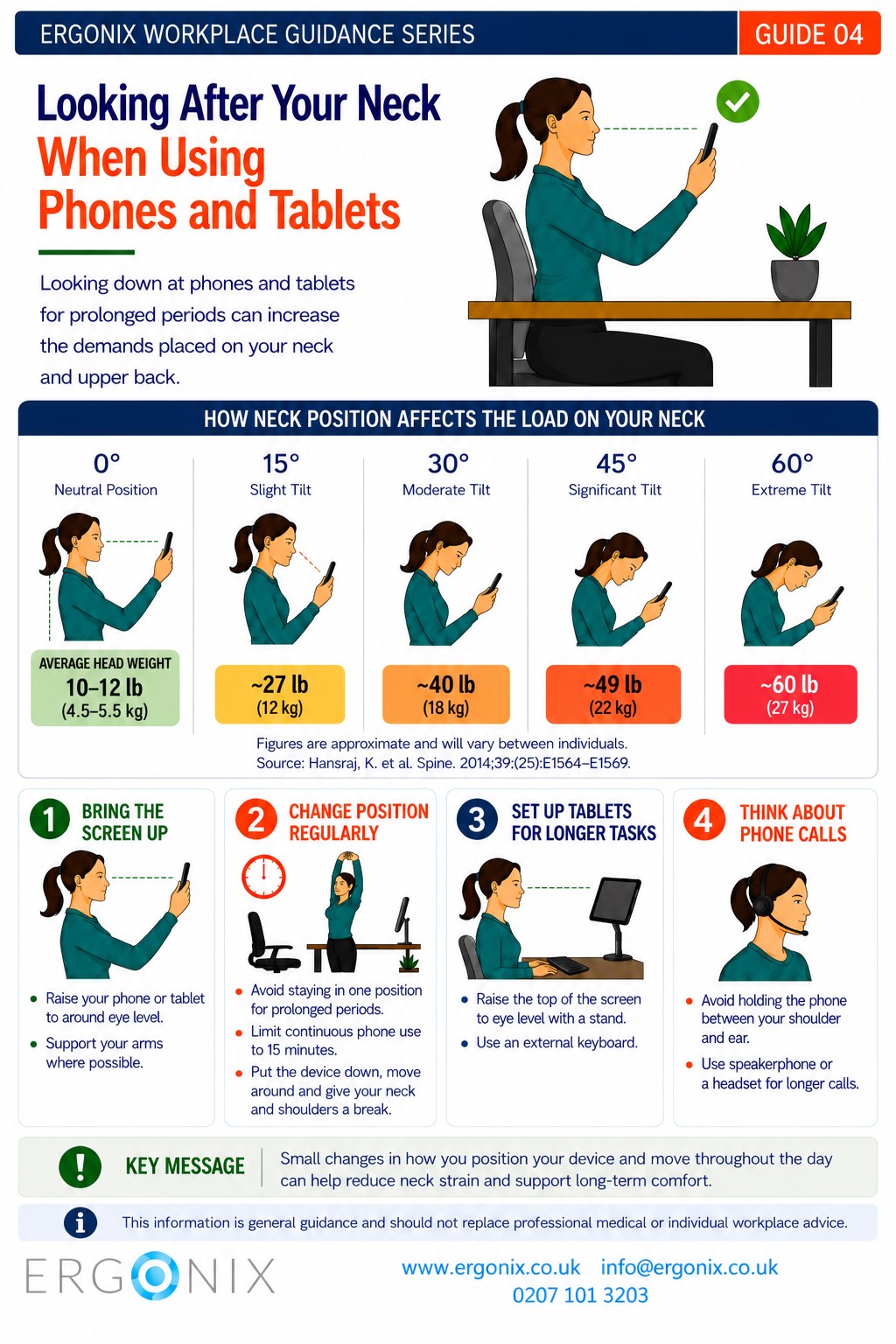
- Screen position requiring the user to adopt a more forward head posture to view content
- Raising the screen improving neck posture but potentially worsening shoulder, elbow and wrist positioning due to fixed input devices
Over sustained periods of use, it may contribute to:
- The risk of neck and back tightness and/or pain
- Upper limb discomfort (hand, wrist, shoulder) associated with sustained input tasks in poor positioning
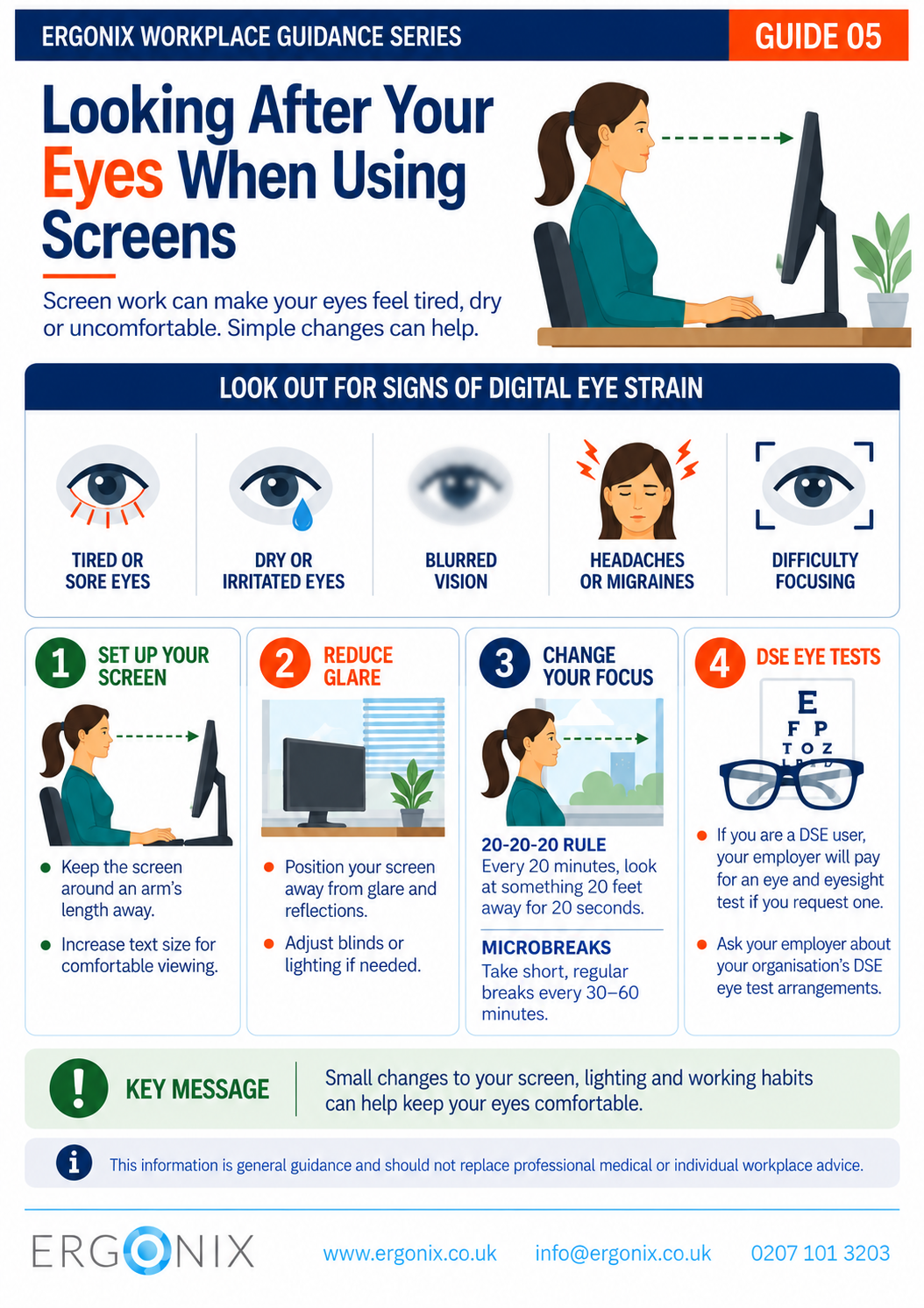
- Visual fatigue where screen positioning is suboptimal
What is considered good practice for laptop use?
For 15 minutes or more of use (applied cumulatively across the working day), appropriate risk controls should be considered to reduce postural strain.
✔ External monitor as the primary display: This allows the screen to be positioned independently of the keyboard and mouse, supporting appropriate viewing height and distance. The laptop then functions as the processing unit rather than the main display.
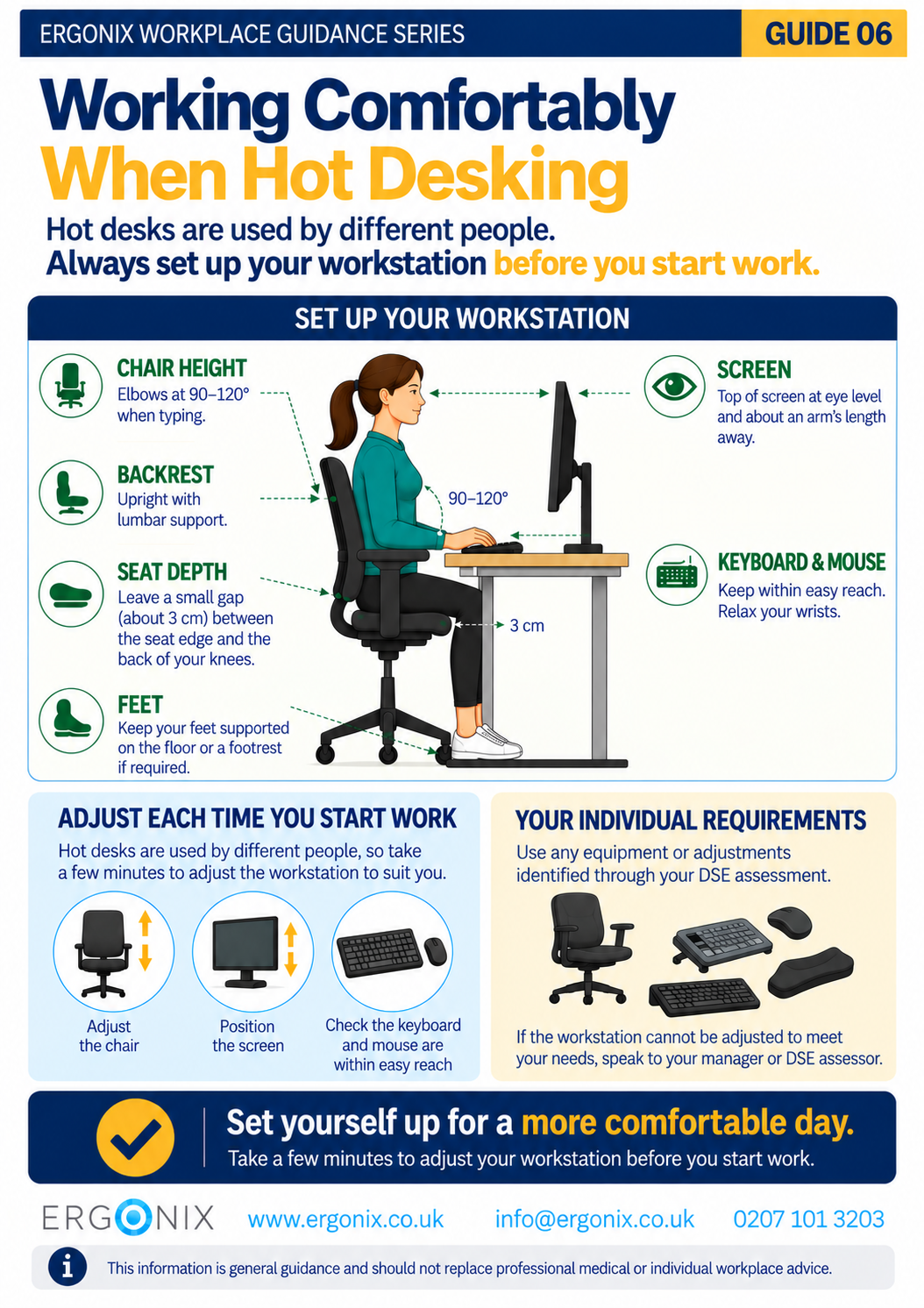
Set-up guidance: position the top of the screen at approximately eye level, about an arm’s length away, ensuring the user is not required to lean forward or adopt a sustained forward head posture.
✔ When external monitor is not available: A laptop riser should be used to elevate the laptop to improve spinal and shoulder alignment.
Set-up guidance: same as external monitor.
✔ External keyboard and mouse: This supports a more neutral upper limb position, including:
- relaxed shoulder posture
- more neutral elbow angle
- improved wrist alignment
Set-up guidance: position the keyboard so elbows are close to the body and roughly at 90-120 degrees, with the mouse placed within easy reach to avoid shoulder abduction or elevation.
This configuration is widely recognised as an effective way of reducing sustained musculoskeletal loading during screen-based work, particularly where laptop use forms a regular part of the working day.
Alternative working environments: when a full setup is not available
In some working environments, a full DSE-compliant workstation may not be achievable. In these situations, the focus shifts from optimal setup to the practical reduction of risk, taking into account the duration, frequency and nature of the task.
The following considerations may support more informed decision-making:
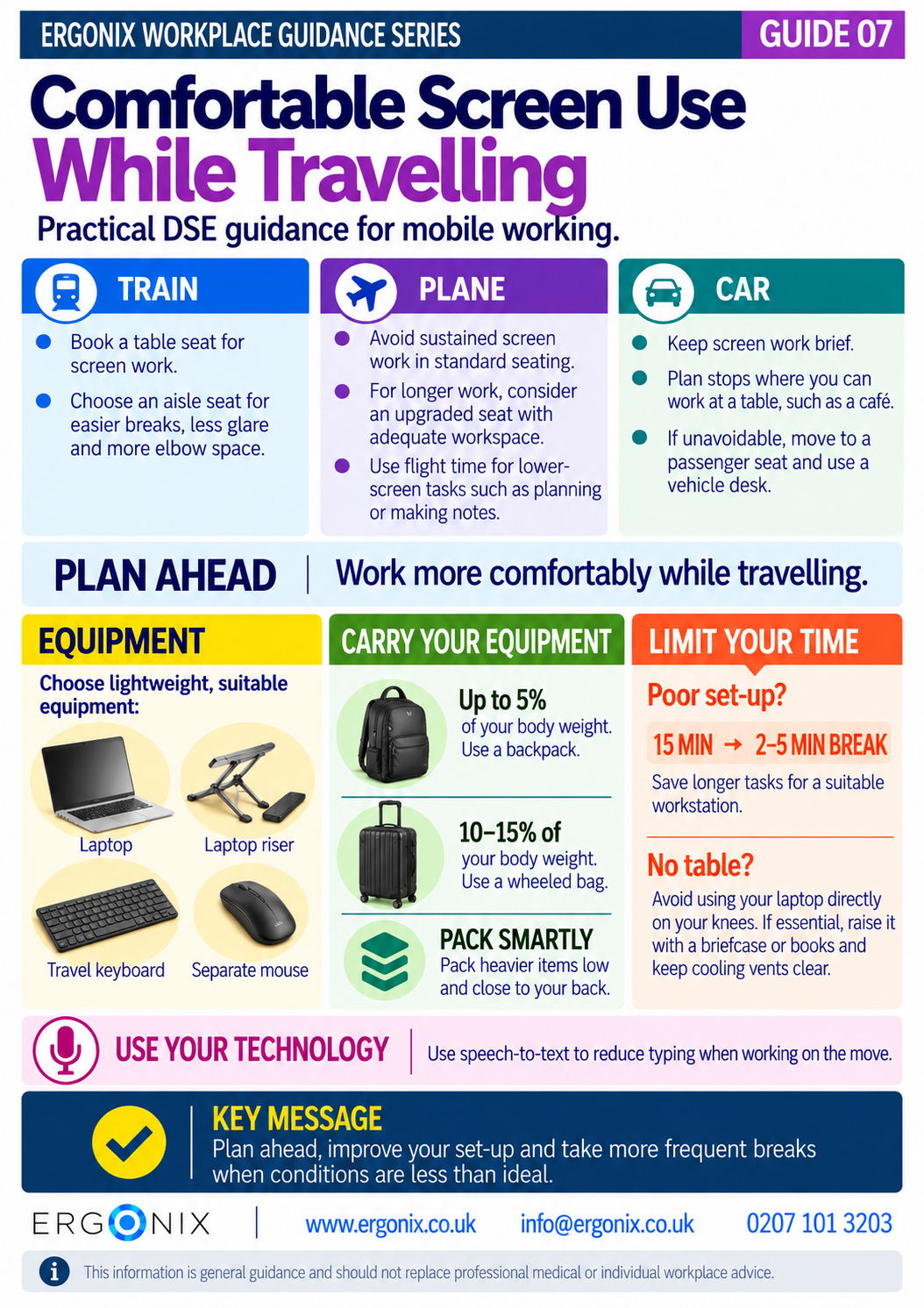
- Working in hotels:
Where sustained work is anticipated, a desk or table-based setup should be used where available. The use of a laptop or tablet riser, combined with an external keyboard and mouse device, supports improved postural alignment. Where this is not feasible, alternative approaches such as voice input or use of hotel business centres or designated workspaces may provide more suitable conditions. - Working on planes or coaches:
Standard seating environments are typically restrictive and do not support sustained screen-based work. Where work is necessary, consideration should be given to the suitability of the seating environment and whether alternative arrangements (e.g. upgraded seating or designated work areas, where available and aligned with organisational policy) would reduce postural constraint. - Working at other offices or client sites:
Advance planning is beneficial to determine what workstation facilities are available, such as external monitors, keyboard, mouse device and suitable seating. Where this is not fully achievable, portable equipment such as a lightweight laptop riser, external keyboard and mouse should be used to support more suitable working postures. Where possible, access to a desk-based setup should also be arranged to support screen-based work. - Working in cars:
Vehicle environments are not designed for DSE work and present significant ergonomic limitations. Sustained work should be avoided where possible. If work is unavoidable, it should be limited in duration, with consideration given to alternative locations that provide a more suitable setup. Where used, in-vehicle desks may offer some improvement, but do not replicate a compliant workstation.
The key DSE principle: it is not about equipment alone
A common misunderstanding in workstation assessments is treating equipment as the solution in isolation.
In practice, effective DSE assessment considers the whole system, including:
- Task duration and intensity
- Work patterns and habits
- Frequency of use
- Workstation layout and environmental constraints
- Equipment availability and practicality
- Breaks and microbreaks
- User’s posture and health
- If mobile working, places and transport
Why break frequency must change depending on workstation setup
One of the most important factors in DSE risk is how long a person remains in a given posture, particularly when that posture is less than ideal.
Static and constrained postures increase sustained muscular loading in the neck, back, shoulders and upper limbs. Over time, this loading becomes cumulative, meaning total daily exposure is what contributes to musculoskeletal risk rather than any single working period.
For this reason, break frequency should be matched to workstation setup, task duration and level of postural constraint rather than treated as a fixed rule.
Practical guidance (for users without existing musculoskeletal symptoms):
✔ Fully supported setup (external keyboard, mouse, and raised screen)
- Around 60 minutes work
- Followed by a 5–10 minute break or postural change
✔ Moderate setup (laptop on table without full peripherals or elevation)
- Around 30 minutes work
- Followed by a 2–5 minute break or postural change
✔ Poor setup (e.g. laptop on knees or smartphone-only working)
- Around 15 minutes work
- Followed by a 2–5 minute break or postural reset
Important consideration: cumulative exposure
Even when regular breaks are taken, a poor workstation setup still results in repeated exposure to sub-optimal postures across the working day. Breaks help reduce continuous loading and allow short periods of recovery, but they do not remove the cumulative nature of musculoskeletal strain.
This is important because cumulative exposure builds over time through repeated periods of sustained loading.
For this reason, equipment adjustments, task design and work patterns should always be considered alongside break strategy rather than in isolation.
The purpose of breaks is not to eliminate exposure, but to manage sustained loading, restore movement variability, and help control the rate of cumulative exposure across the working day. More constrained setups require more frequent postural variation to manage sustained loading appropriately.
Practical guidance for DSE assessors
Effective DSE assessment is based on understanding how work is carried out in reality, rather than relying on a single observation or idealised setup. In practice, this may involve:
- Observe the user completing real tasks
- Assess posture over time, not just at a single point
- Identify whether symptoms relate to sustained use patterns
- Consider whether simple adjustments can improve setup
- Escalate to equipment changes where justification is clear
- Ensure recommendations are proportionate to risk and exposure
Conclusion
Laptop-only setups are not inherently unsuitable; their suitability depends on the duration, frequency and nature of use. While they offer flexibility, their design creates ergonomic limitations when used for regular and repeated periods of screen-based work.
From a DSE assessment perspective, the key consideration is whether the setup allows acceptable postural alignment over time, or whether repeated use leads to ongoing postural compromise and increased cumulative musculoskeletal load.
Effective risk management relies on a combination of appropriate equipment, task organisation, and movement and break strategies applied across the working day. The aim is not to avoid laptop use, but to ensure it is appropriate for the pattern of work being carried out.
Supporting better DSE assessment decisions
In practice, these are the points where DSE assessments become more challenging to apply in actual working environments. Workstation assessments often involve multiple variables, including workload demands, hybrid working patterns and limited control over the environment. As a result, the challenge is rarely understanding the principles, but applying them appropriately in environments where setups and work patterns vary.
This is where variation in assessment decisions most commonly occurs in practice.
Ergonix delivers CIEHF-accredited DSE Assessor Training designed to support professionals in developing practical, evidence-based decision-making skills that can be applied directly to workstation assessments, particularly where laptop use, hybrid working and variable workstation setups are involved.
The focus is on improving how risk is interpreted, how exposure is considered and how recommendations are made across a range of working patterns and setups.
Related reading
How do Laptops Impact on Workstation Ergonomics
Choosing the Right Keyboard for DSE Workstations
Simple Desk-Based Stretches to Help Reduce Employee Musculoskeletal Complaints